


 Virtualization software like VMware or VirtualBox are useful software for you to try and experiment with different operating systems without physically installing them in your PC. For those who are not aware, Windows 8 also comes with a client Hyper-V feature that allows the users to run virtual machines in it. However, it is disabled by default. In this quick guide, let us see how to enable Client Hyper-V in Windows 8.
Note: Please don’t confuse the Client Hyper-V in Windows 8 with the actual full-blown Hyper-V technology used in Windows servers. Also, even though you can enable Client Hyper-V in both 32-bit and 64-bit versions of Windows 8, you can only install and run virtual machines in 64-bit computers.
Minimum System Requirements
Client Hyper-V’s minimum system requirements state that your Windows 8 PC has at least has 4GB of memory (RAM), and your CPU supports SLAT (Second Level Address Translation) technology. This shouldn’t be an issue on a newer computer.
Enable Client Hyper-V in Windows 8
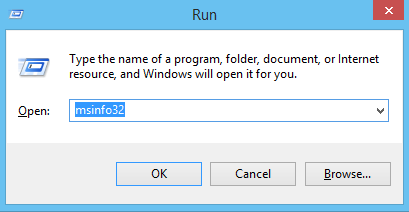
Before enabling the Client Hyper-V, you can actually check if your Windows 8 PC is ready for virtualization using Client Hyper-V. To find out, open the Run dialog box by pressing “Win + R”, type msinfo32 and press the Enter button.
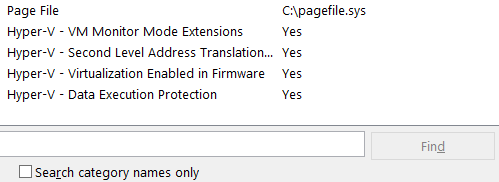
The above action will open the “System Information” window. Scroll down the window. If the below shown values are all set to “Yes”, then you are good to go. If any of the values are set to “No,” then it means that you should enable virtualization in your BIOS settings. Once you have enabled the virtualization in BIOS, you can follow the below steps.
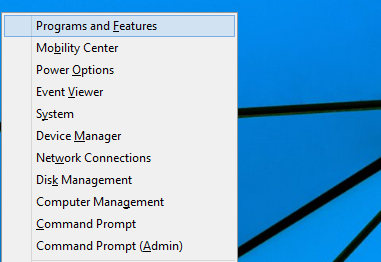
Press “Win + X” to open the power user menu. Select “Programs and Features” from the list of options.
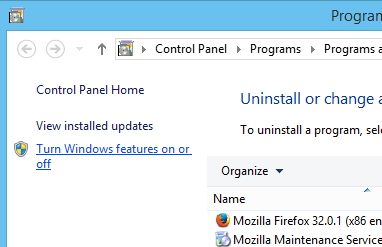
The above action will open the “Programs and Features” window. Click on the link “Turn windows features on or off” located on the left pane to open Windows features.
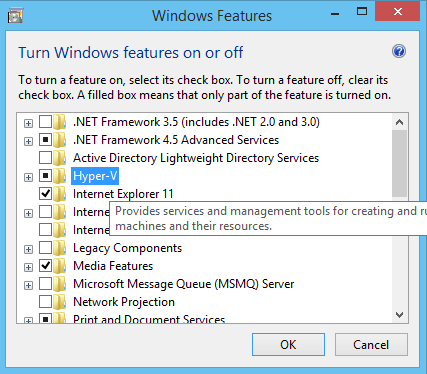
Select the check box “Hyper-V” and click on the “Ok” button. If you want to, you can click on that little “plus” icon to see what components of Hyper-V are enabled.
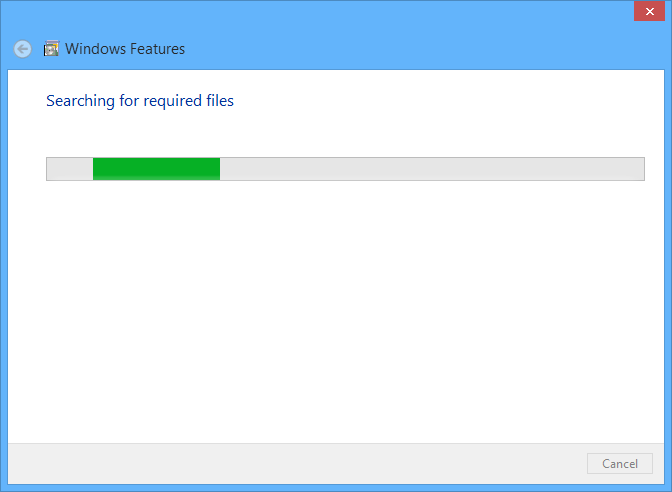
As soon as you click on the “Ok” button, Windows will enable all the required dependencies and binaries to the Windows installation.
Once Windows finishes the process, restart your machine. From this point forward, you can start using Client Hyper-V to install and run virtual machines like in any other virtualization software.
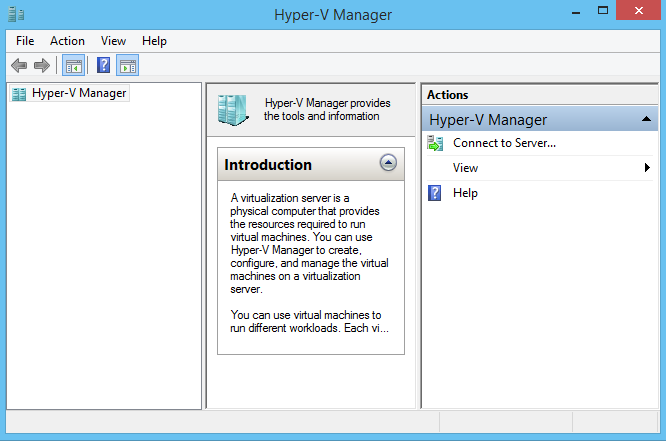
That’s all there is to do, and it is that easy to enable Client Hyper-V in your Windows 8 machine. Hopefully that helps, and do comment below if you face any problems while enabling Client Hyper-V in your Windows 8 computer.
The post How to Enable Client Hyper-V in Windows 8 to Run Virtual Machines appeared first on Make Tech Easier.






















No Comments